
Getting started with ESKEES Studio
Written against the alpha (September 2026). The screens may change without notice. The app is currently in Japanese; labels are quoted as they appear, with translations.
ESKEES Studio is ESKEES in your browser. Assemble artwork as parts, add motion and logic, and turn it into a character, a wallpaper or a small game.
The quickest way in is to remix a sample. All six samples on showcase open directly in Studio. Start by swapping a single image → Remix a sample
1. The screen
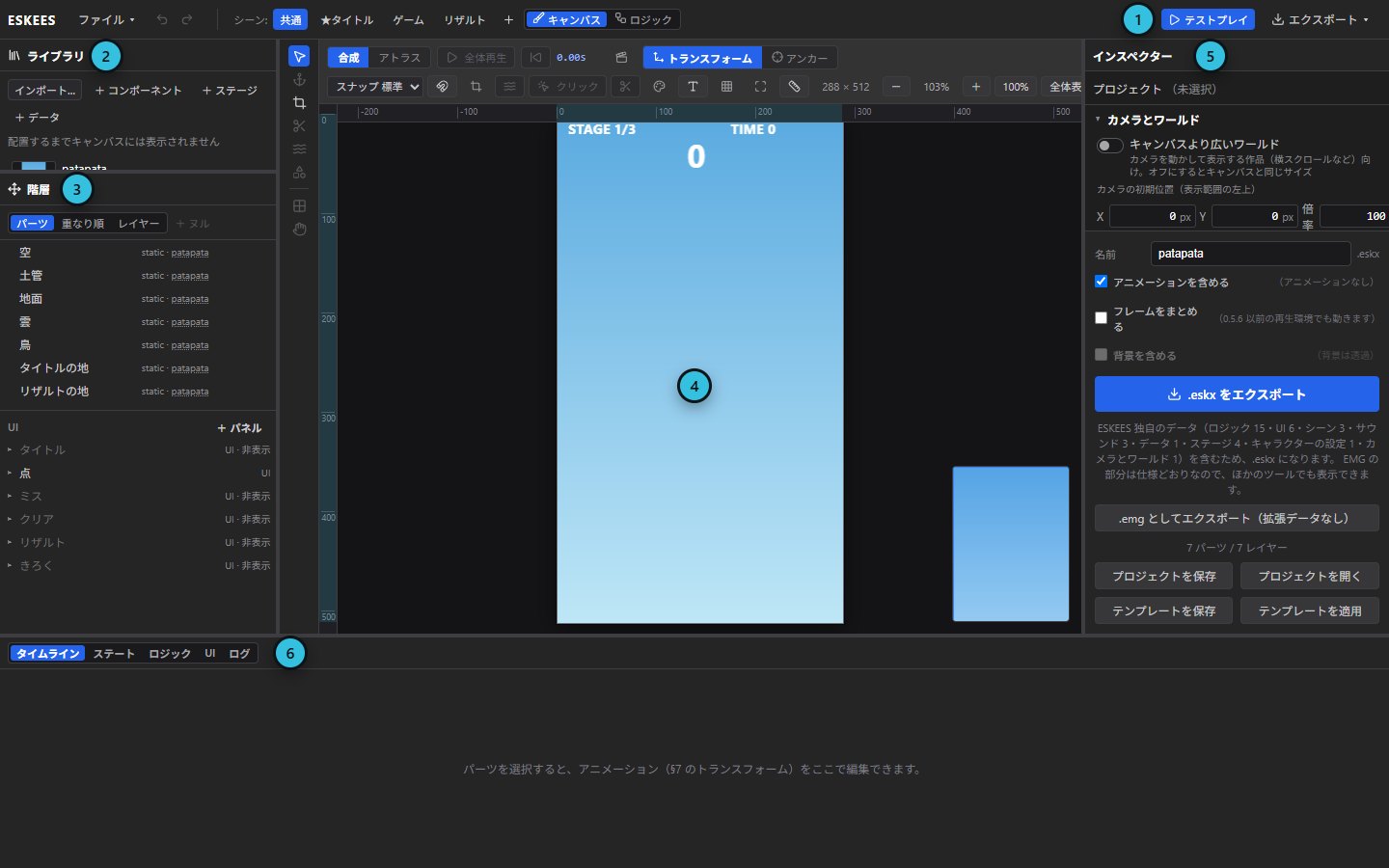
- Top bar — 「ファイル ▾」 (File: save / open), scenes, 「キャンバス / ロジック」 (Canvas / Logic), 「テストプレイ」 (Test play) and 「エクスポート ▾」 (Export).
- Library — where imported assets live. Nothing appears on the canvas until you press 「配置」 (Place).
- Hierarchy — the parts on the canvas. Select a part here and the inspector switches to its settings.
- Canvas — the work itself. Drag parts to move them.
- Inspector — settings for whatever is selected. With nothing selected, it shows the project settings and export.
- Bottom panel — timeline, states (expressions / outfits), logic, UI and log.
2. Bring in your artwork
- Use 「ファイル ▾」→「アセットをインポート…」 (Import assets) or the library's 「インポート…」 to pick a PSD, KRA, PNG or GIF. Drag-and-drop works too.
- Press 「配置」 on the asset in the library to place it in the middle of the canvas.
- Each PSD group becomes a part. Groups where only one layer shows at a time (expression or outfit variants) are Switch; groups that stack everything are Static. Change it under the inspector's 「パーツ」 (Parts).
3. Animate
- Select a part in the hierarchy and open 「タイムライン」 (Timeline) in the bottom panel.
- Press + on a row such as X position or rotation to set a key at the current time. Move the time, change the value, set another key — the part moves between them.
- Check it with 「全体再生」 (Play all) above the canvas. For hair or cloth sway, use 「メッシュで揺らす」 (Sway with mesh) in the inspector.
4. Make it playable
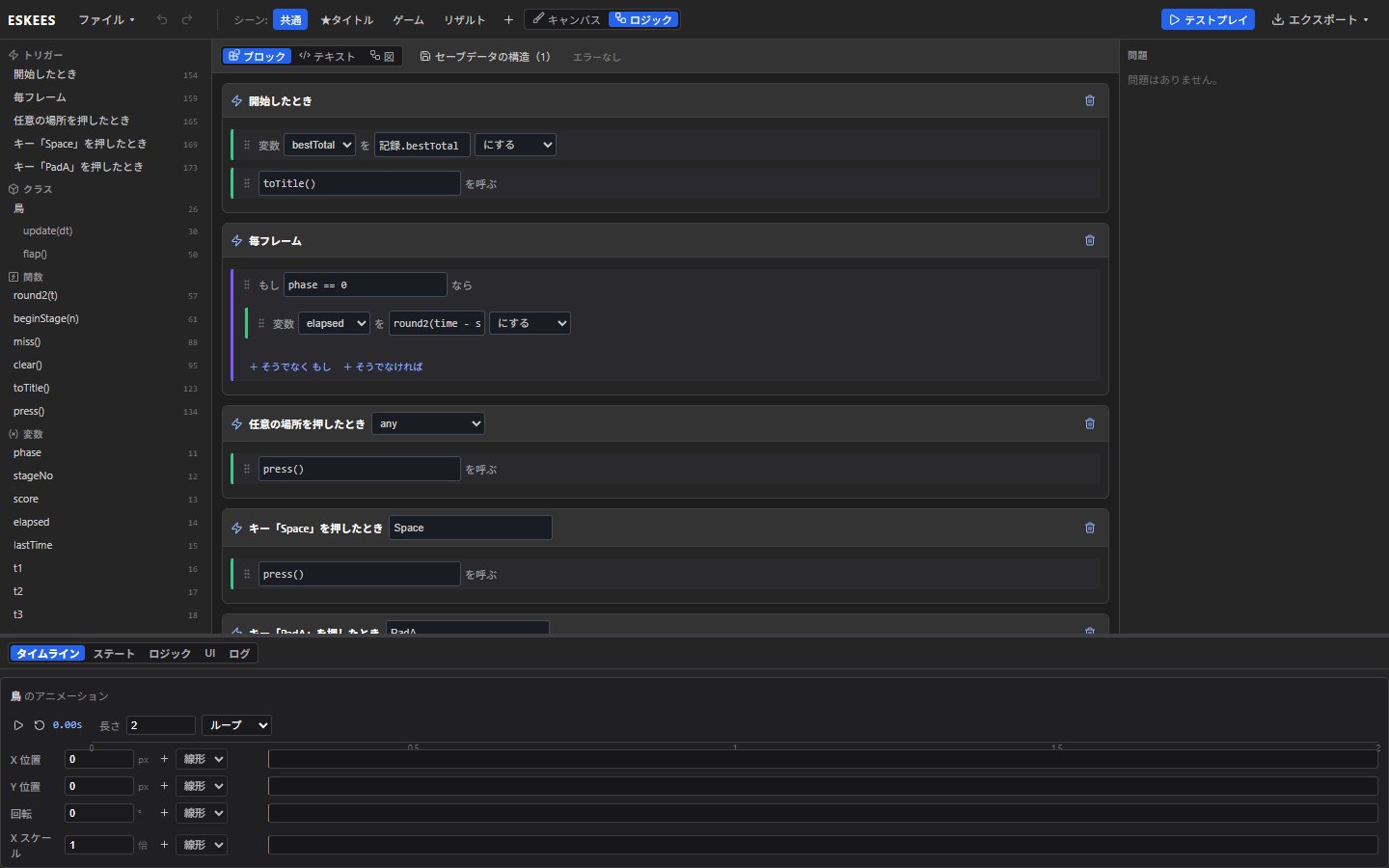
- Switch the top bar to 「ロジック」 (Logic) to edit the script. Write it as blocks, text or a diagram (「ブロック」「テキスト」「図」) — all three edit the same script.
- To move a character with the arrow keys, you need no script: select the part and choose a control in the inspector's 「キャラクター」 (Character) section (8 directions, left/right, or left/right and jump).
- Press 「テストプレイ」 to run it on the same engine as the Player. Press Esc to stop.
5. Save and publish
- Save often with 「ファイル ▾」→「プロジェクトを保存」 (Save project). Studio runs entirely in your browser and never uploads your work. Reopen the saved .espj with 「プロジェクトを開く…」 (Open project).
- 「エクスポート ▾」→「.eskx をエクスポート」 writes a playable file (.emg if you use no logic).
- Upload it with a thumbnail from 「作品を投稿」 (Post a work) on showcase, and anyone can play it in the browser.
When you get stuck
- Undo with Ctrl+Z, redo with Ctrl+Shift+Z.
- If a part is missing, try another scene in the top bar (「共通」, 「★タイトル」 …). Each scene shows different things.
- Studio is still an alpha and has plenty of rough edges. Please tell us where you got stuck via our contact form.